Recently, Qwen3.5 has been one of the hottest models in the community. It’s a vision language model that’s relatively small and performs well
in coding benchmarks. This means I can host it locally on my M-series Mac and use it with opencode.
I didn’t find many resources online about setting it up, so here’s a short guide.
Prerequisite
Updates: This is outdated, Qwen3.5 just published 0.8B, 2B, 4B, and 9B models! So you can now run Qwen3.5 on any M-series Mac. For example, 4B requires ~3.4GB RAM and 9B requires ~6.6GB RAM.
You’ll need an M-series Mac with at least 32GB RAM to run Qwen3.5 comfortably. In theory, you could run it on 24GB RAM with 27B parameters, which only requires 17GB, but it’s a bit tight on memory.
On top of that, the 27B model is dense, so inference is slower than the 35B MoE (Mixture of Experts) model.
For context, I’m running these on my Mac mini with an M4 Pro chip, a 14-core CPU, a 20-core GPU, and 64GB RAM.
Qwen3.5
Qwen3.5 comes in different architectures, parameter sizes, and quantization levels.
Architecture
There are two architectures for Qwen3.5: the dense model qwen35 and the MoE model qwen35moe. The differences are inference speed 1 and intelligence. The MoE model is faster than the dense model, but less intelligent. For Qwen3.5, qwen3.5:27b is a dense model, while qwen3.5:35B is a MoE model.
You can learn more about how MoE works from this Reddit post.
Parameters and Quantization
In general, larger parameter counts have better capabilities, at the cost of higher memory usage and latency. Quantization is another factor that influences both size and speed. Lower-bit quantization reduces memory usage and improves latency.
For example, qwen3.5:35b is a model tag, while its parameter count is approximately 36 billion. It also comes with different
quantization levels. For example, 4-bit quantization means it has 4 bits per weight.
With this information, you can estimate the required memory usage using the following formula (from BentoML):
# Memory (GB) = P * (Q / 8) * (1 + Overhead)
36 * 4 / 8 bits * 1.2 = ~21G
I’d recommend the 35B model for coding because it has faster inference.
Tools
There are multiple ways to run LLMs locally on macOS:
ollama- The easiest one to get started with, and it works out of the box with
opencode.
- The easiest one to get started with, and it works out of the box with
- LM Studio
- This is a macOS app to run AI models locally.
- It’s also easy to get started with, but it requires some manual setup to work with
opencode. - It supports using
MLXwith tool calling, so it’s slightly faster thanollama.
mlx- Performs best, but at the time of writing
mlx-vlmdoesn’t support tool calling. - Without tool calling, you can’t really use it to vibe code, since it can’t read/edit files.
- There’s a PR in progress to support that.
- Performs best, but at the time of writing
I suggest starting with LM Studio or ollama, then exploring mlx later as needed.
LM Studio
First, download the app by following the instructions here. After opening LM Studio, you can use
Cmd + Shift + M to open the models page. Then, in the search bar, search for Qwen3.5 and make sure you also
filter by MLX. Pick the model you prefer and press the Download button.
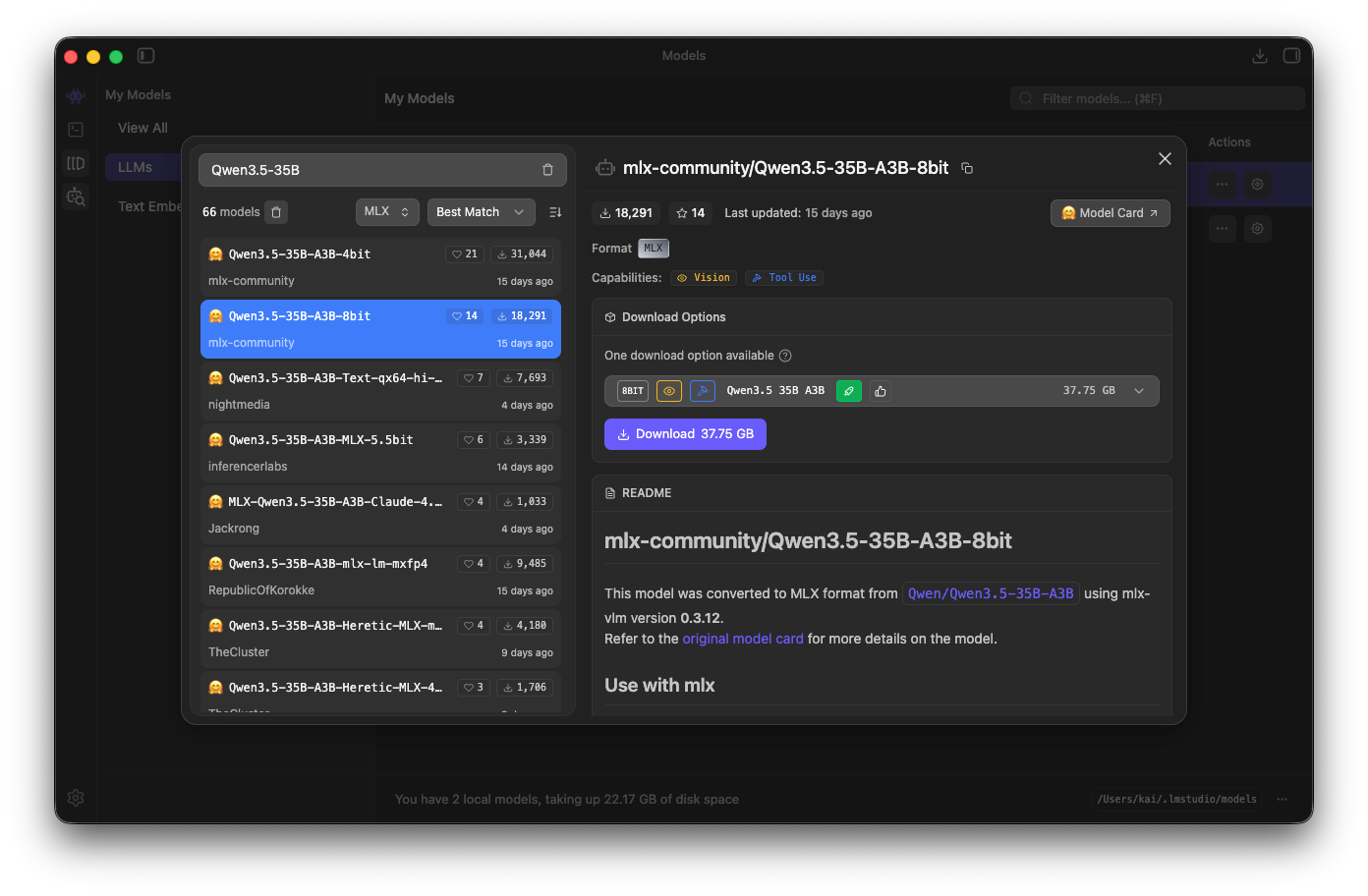
Once the model is downloaded, you can go to the Chat (Cmd + 1), and start a new chat by clicking the New Chat button.
Then, load the downloaded model (Cmd + L).
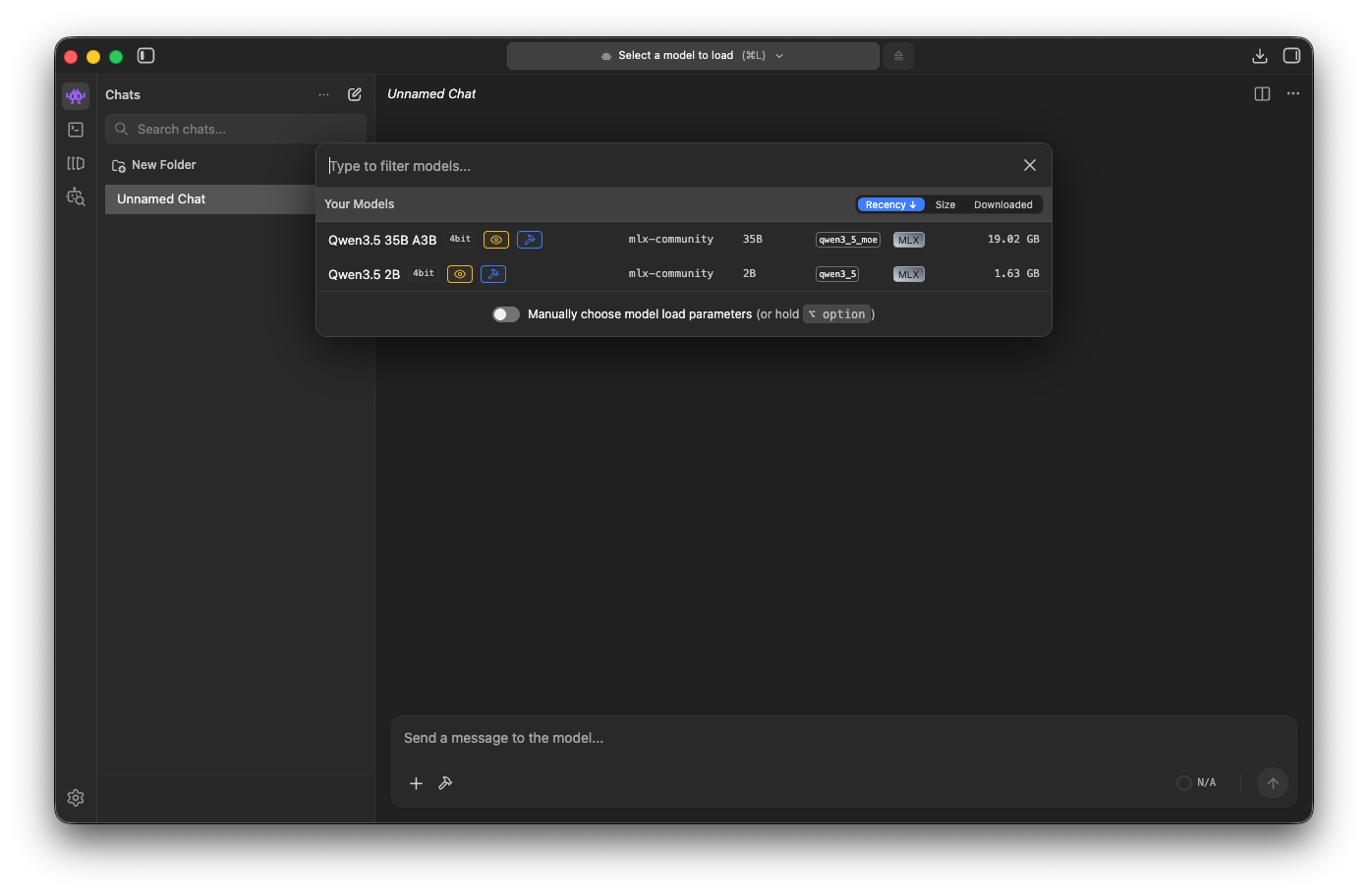
It will take a while for the model to load.
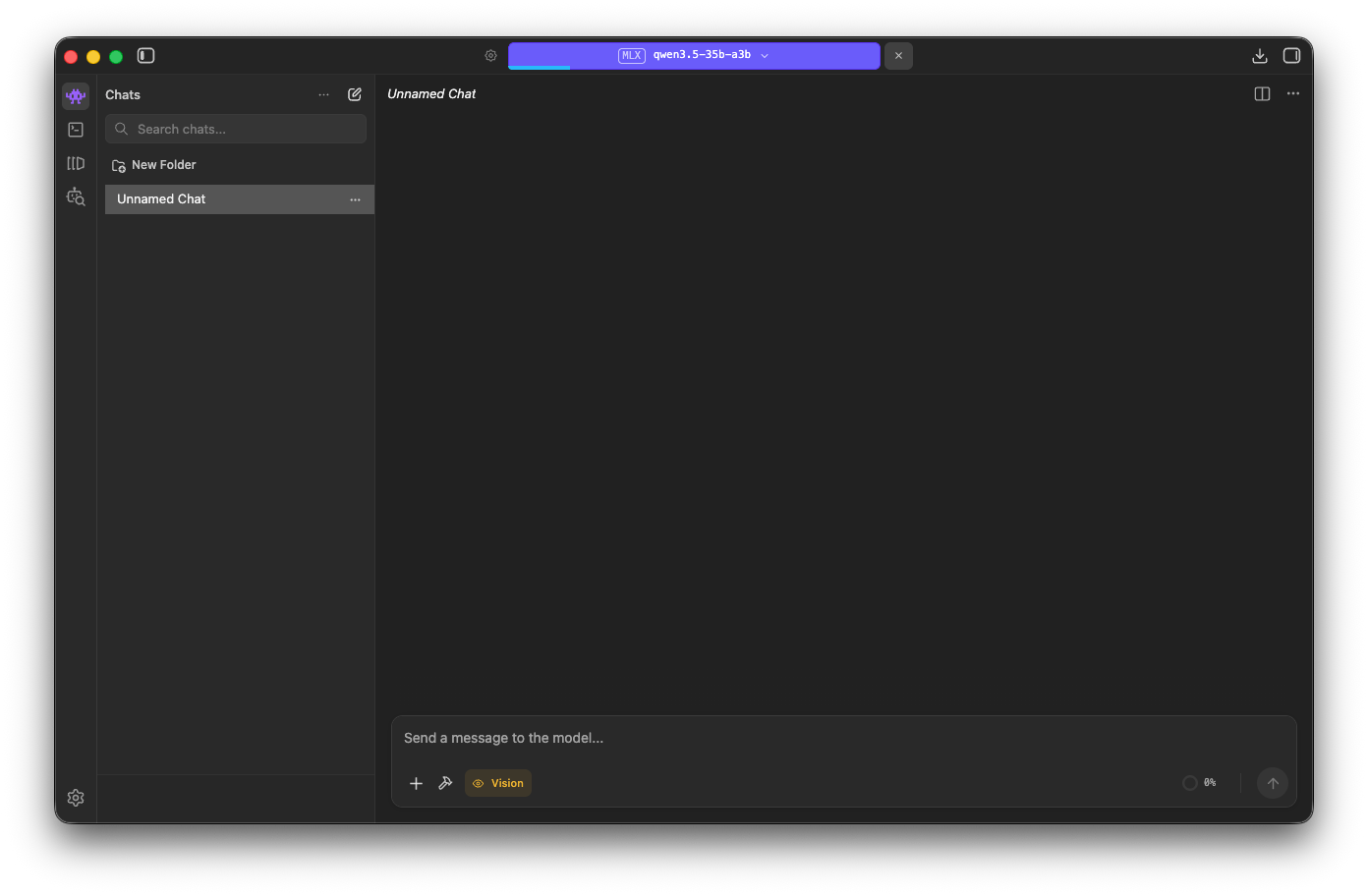
Once it’s loaded, you can send a prompt to it!
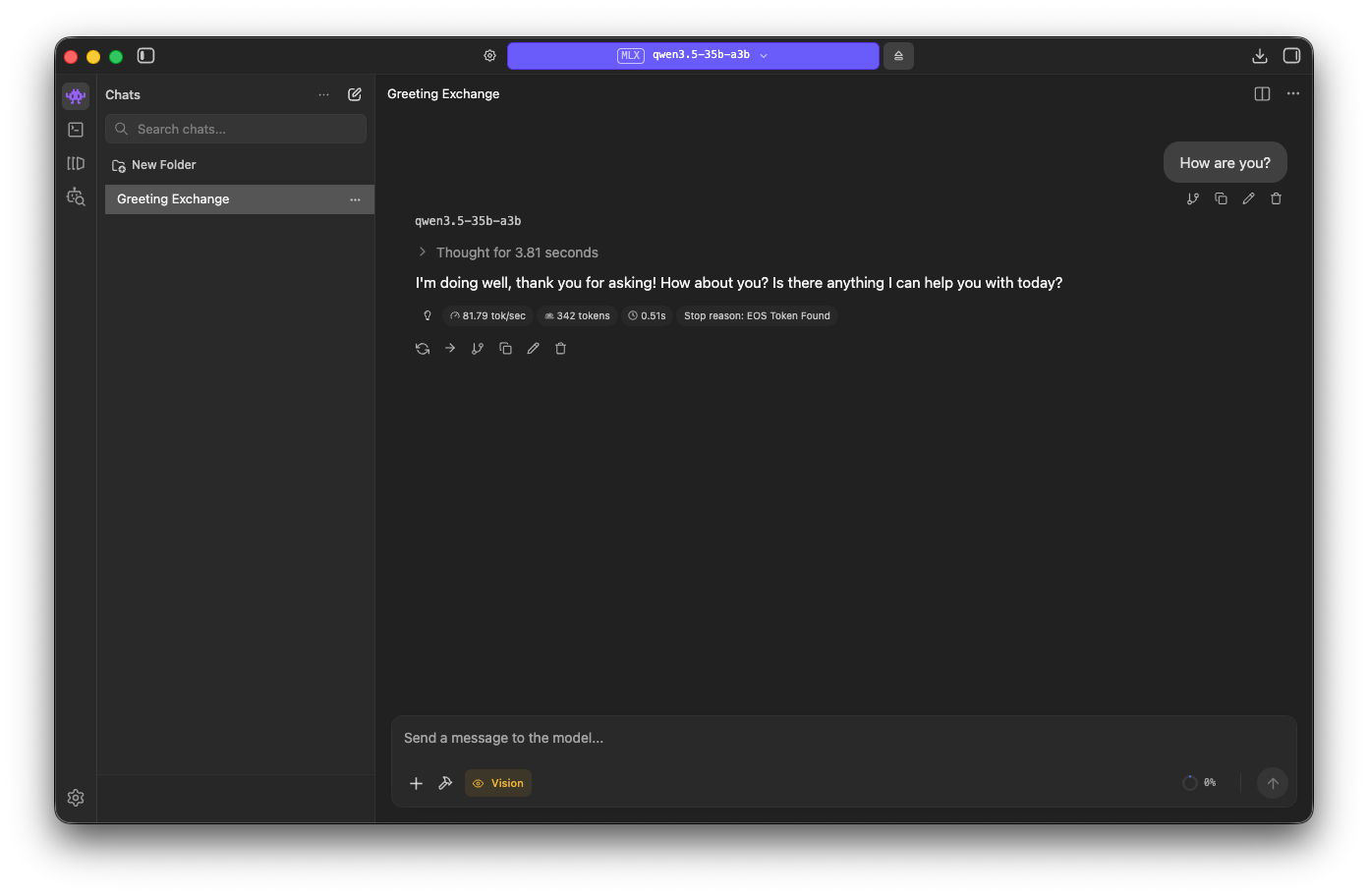
Based on the LM Studio metrics, we are generating 81.79 tokens/sec and it thinks for 3.81 seconds.
Working with opencode
To make it work with opencode or any local agent, you’ll need to run LM Studio in server mode. This can be done in
the Developer screen (Cmd + 2).
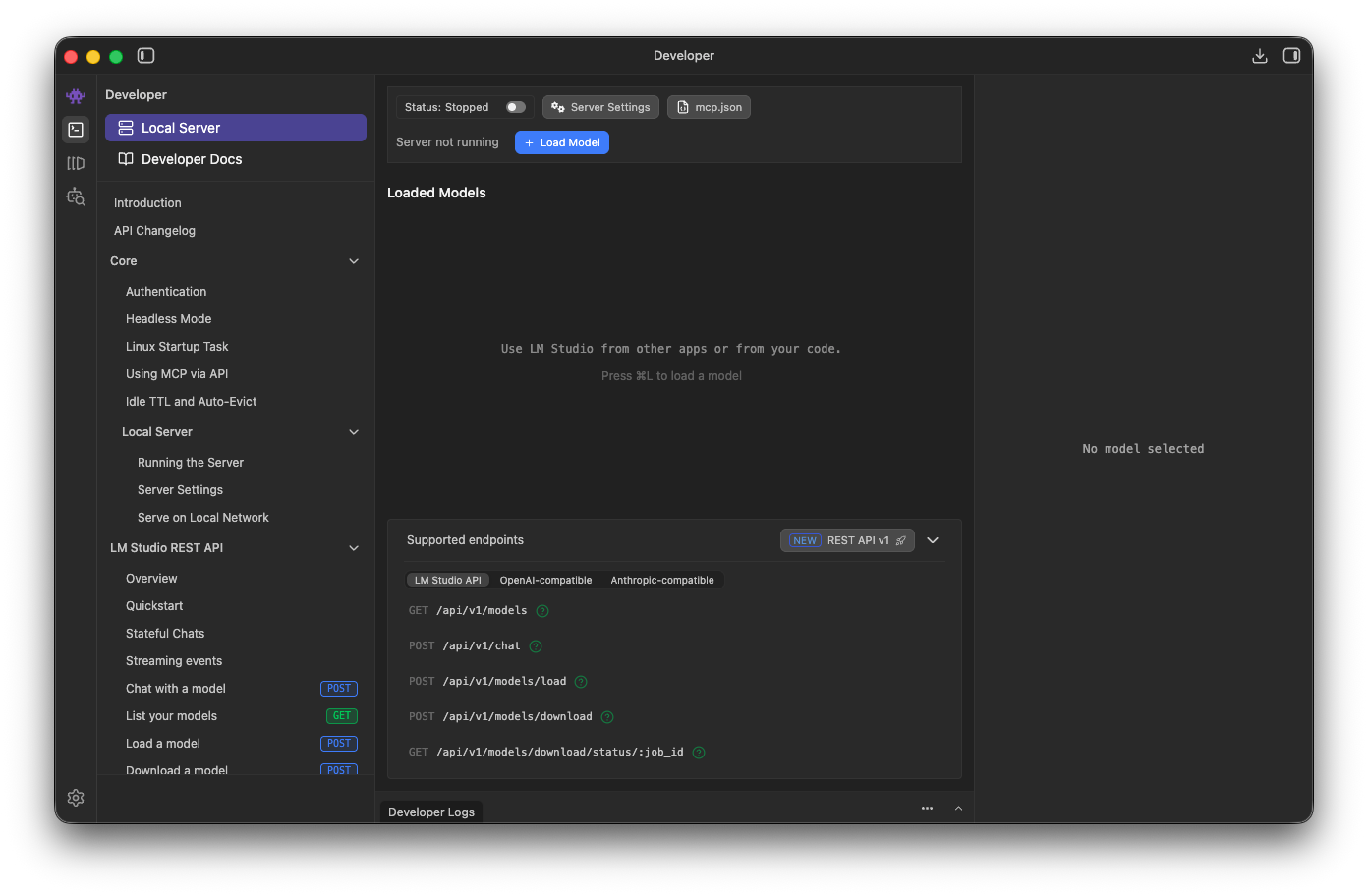
Then, just toggle the server to Running.
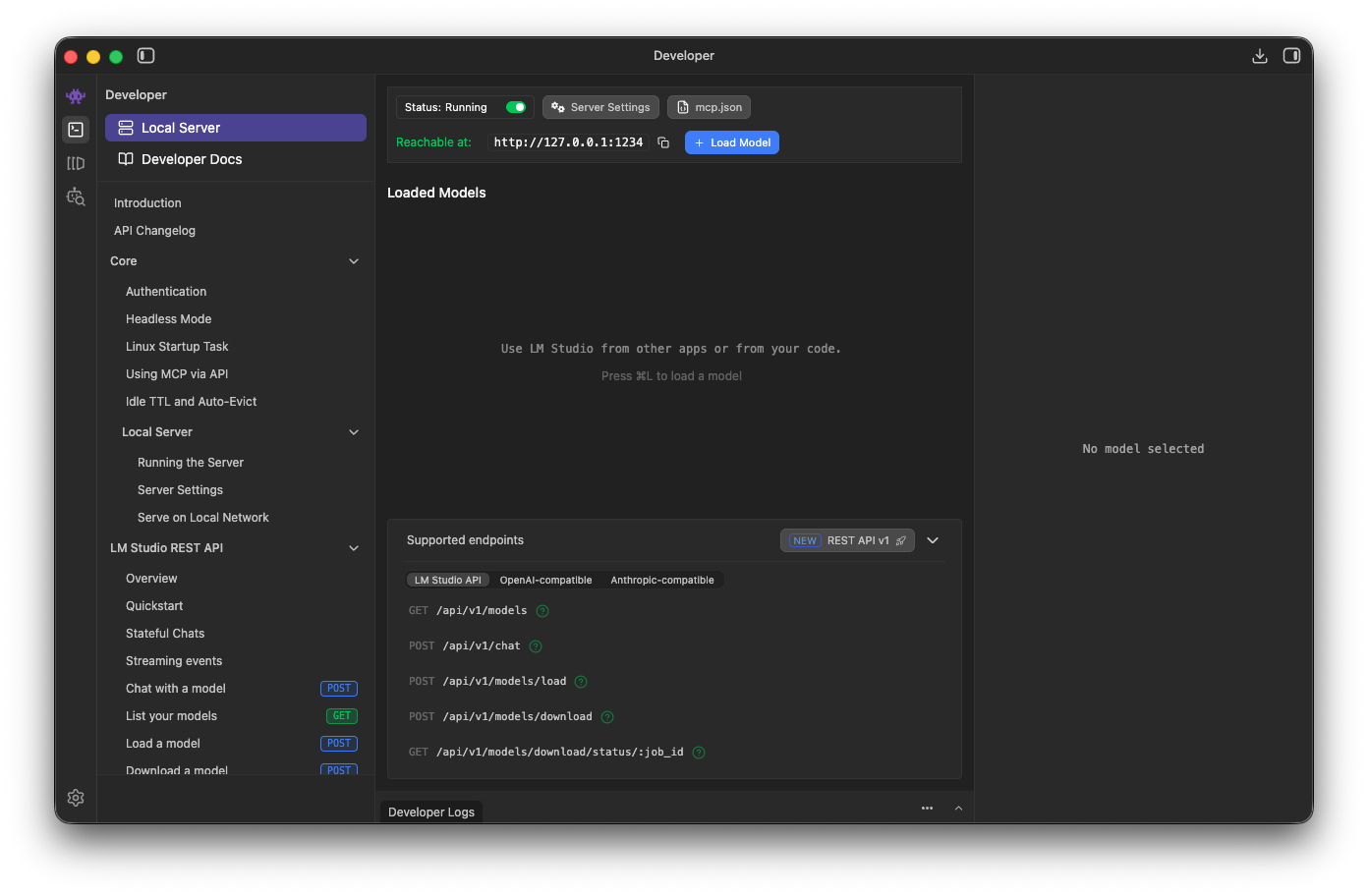
You’ll also need to update your opencode configuration:
{
  "$schema": "https://opencode.ai/config.json",
  "provider": {
    "lmstudio": {
      "npm": "@ai-sdk/openai-compatible",
      "name": "LM Studio (local)",
      "options": {
        "baseURL": "http://127.0.0.1:1234/v1"
      },
      "models": {
        "mlx-community/Qwen3.5-35B-A3B-4bit": {
          "name": "qwen3.5"
        }
      }
    }
  }
}
The key for provider.lmstudio.models should match the Hugging Face repo name. So change it to
mlx-community/Qwen3.5-27B-4bit if you are using the 27B one.
With that, you should be able to select LM Studio Qwen3.5 as your model:
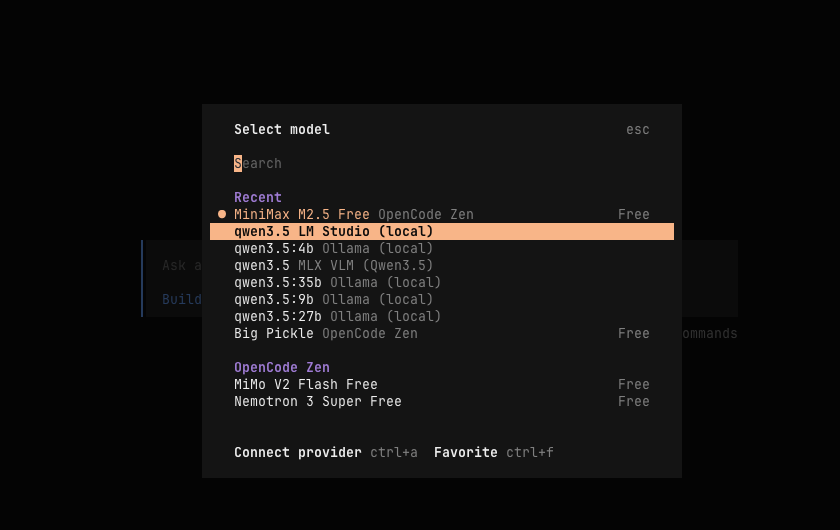
Now you can test it out by sending a prompt.
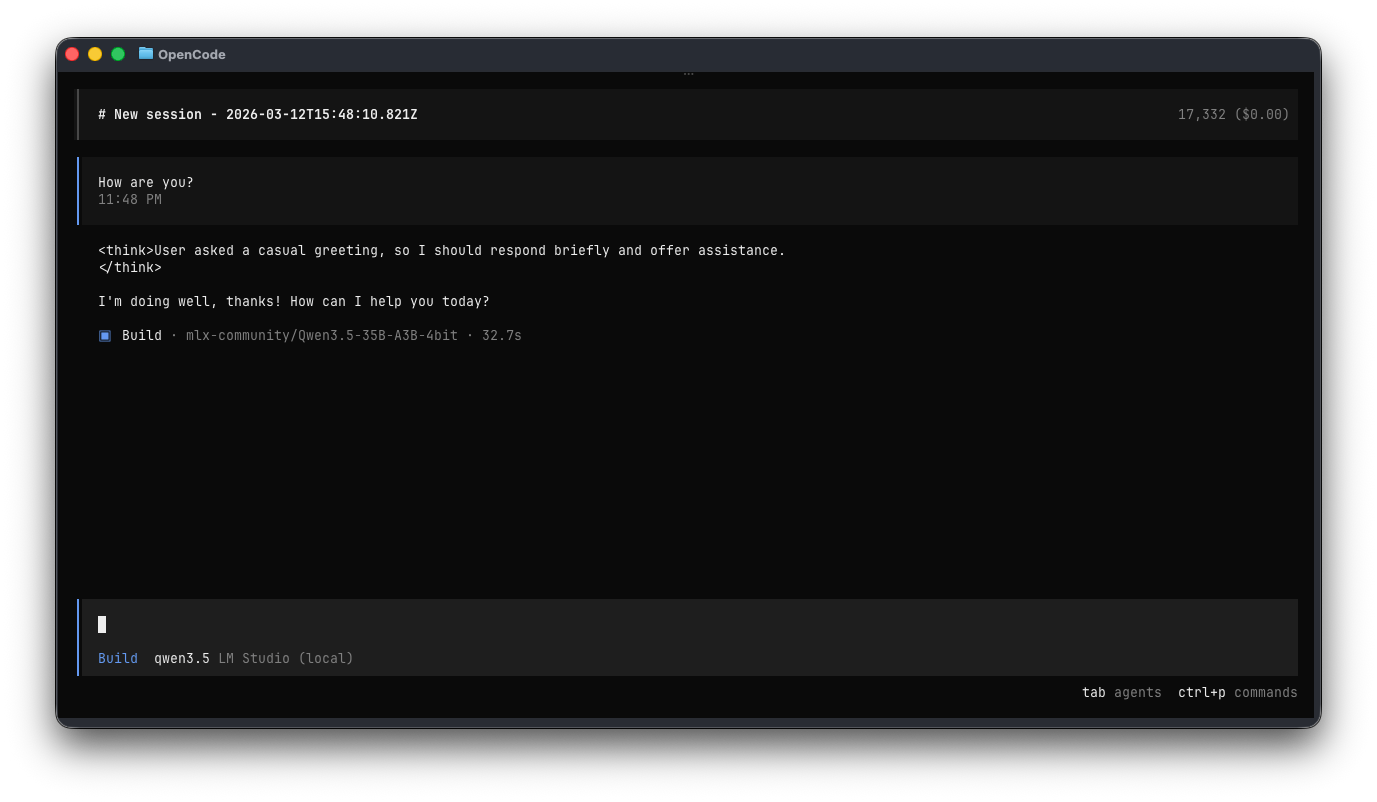
It takes ~32 seconds, including model load time.
ollama
First, install ollama following the instructions here. Then run the following:
# Require 17GB
# arch qwen35 · parameters 27.8B · quantization Q4_K_M
ollama run qwen3.5:27b

# Require 24GB
# arch qwen35moe · parameters 36B · quantization Q4_K_M
ollama run qwen3.5:35b
By default, it’s running with 4-bit quantization. You can see the details here:
qwen3.5:27b and qwen3.5:35b.
To connect it to your opencode, run the following command:
# Replace 'opencode' with 'claude' or 'codex' as you see fit
ollama launch opencode --model qwen3.5:27b
ollama launch opencode --model qwen3.5:35b
This will modify your configuration, and then launch opencode with Qwen3.5 selected as the model.

You can now enter a prompt and test the latency. On my machine, the first ollama run for qwen3.5:35b with “How are you?” took 58s 2 (cold start, including model load):

A second run took 16.8s (warm run):

That’s it, that’s all it takes to run Qwen3.5 locally on your Mac. It can probably be tuned further to be faster, but that’s a topic for another day.
MLX
MLX is Apple’s machine learning framework. You’ll use mlx-lm or mlx-vlm to run the models on mlx. Since Qwen3.5 is a vision-language model, you can’t run it with just mlx-lm. Instead, you need to use mlx-vlm (v for vision).
I used Homebrew to install python3, and running pip3 install "mlx-vlm[torch]" 3 resulted in:
❯ pip3 install "mlx-vlm[torch]"
error: externally-managed-environment
So I used pipx as suggested:
brew install pipx
pipx install "mlx-vlm[torch]"
With mlx-vlm installed, you can now pull the model weights and test them out. For other MLX Qwen3.5 models, you can find them here.
# 27B with 4-bit quantization
mlx_vlm.generate --model mlx-community/Qwen3.5-27B-4bit --max-tokens 100 --temperature 0.0 --prompt "How are you?"

# 35B with 4-bit quantization
mlx_vlm.generate --model mlx-community/Qwen3.5-35B-A3B-4bit --max-tokens 100 --temperature 0.0 --prompt "How are you?"
Output:
Fetching 14 files: 100%|███████████████████████████████████████████| 14/14 [00:00<00:00, 64175.14it/s]
Download complete: : 0.00B [00:00, ?B/s]                                       | 0/14 [00:00<?, ?it/s]
==========
Files: []

Prompt: <|im_start|>user
How are you?<|im_end|>
<|im_start|>assistant
<think>

Thinking Process:

1.  **Analyze the Request:**
    *   Input: "How are you?"
    *   Intent: A standard greeting/check-in.
    *   Expected Response: A polite, friendly, and helpful response acknowledging the greeting and offering assistance.

2.  **Determine the Tone:**
    *   Friendly, professional, helpful, and concise.
    *   As an AI, I should acknowledge my nature (optional but often good for
==========
Prompt: 14 tokens, 61.059 tokens-per-sec
Generation: 100 tokens, 89.100 tokens-per-sec
Peak memory: 20.464
If you want to run with other parameters, you can find it here.
Updates (13/3/2026)
For some reason, using opencode with mlx-vlm 0.4.0 running Qwen3.5 doesn’t work out of the box anymore.
opencode gets stuck waiting for responses, while the server logs indicate that the response was sent.
To use it with opencode, first start the mlx-vlm server with:
# You could also skip --host 0.0.0.0 and bind to localhost instead
mlx_vlm.server --port 8088 --host 0.0.0.0
Then add this to your opencode configuration (for me it’s in ~/.config/opencode/opencode.json):
{
  "$schema": "https://opencode.ai/config.json",
  "provider": {
    "mlx-vlm": {
      "models": {
        "mlx-community/Qwen3.5-35B-A3B-4bit": {
          "_launch": false,
          "name": "qwen3.5"
        }
      },
      "name": "MLX VLM (Qwen3.5)",
      "npm": "@ai-sdk/openai-compatible",
      "options": {
        "baseURL": "http://127.0.0.1:8088"
      }
    }
  }
}
The key for provider.mlx-vlm.models should match the Hugging Face repo name. So change it to
mlx-community/Qwen3.5-27B-4bit if you are using the 27B one.
Now run opencode and select Switch model. You should see the qwen3.5 options available:

For mlx-vlm, the same prompt took 6.4s on a cold start in my setup:

You’ll notice that when using MLX, the output isn’t working well out of the box:
The user is asking how I am, which is a casual greeting - I should respond briefly and offer to help.
</think>
I'm doing well, thanks for asking! How can I help you today?
It’s not showing the thinking UI correctly because the mlx-vlm server doesn’t currently parse this text.
When using ollama, it generates:
Thinking: User asked 'How are you?' which is a casual greeting - respond briefly and offer help since this is a conversational exchange.
I'm doing well! How about you? What can I help you with today?
MLX is fast, but currently doesn’t support tool calling. It’s still impressive to use it when tool calling isn’t needed.
Wrap up
At the time of writing, LM Studio gives me the best overall local setup, so I use it for lightweight tasks.
The pace of LLM advancement is both scary and exciting. If you had told me a few months ago that I’d be able to vibe-code with an LLM hosted locally on my Mac mini, I wouldn’t have believed it. And it’s only the beginning of 2026.
This trend also raises an interesting question: if anyone can run strong models locally, are we getting close to a reset in how inference is priced and sold?
Faster inference speed means more tokens per second. ↩︎
For comparison, running the
qwen3.5:27bdense model takes about 3 minutes to reply to this prompt on a cold start. ↩︎Installing
mlx-vlmwithouttorchon my Mac resulted inTypeError: argument of type 'NoneType' is not a container or iterablefromtransformers/models/auto/video_processing_auto.py. ↩︎